In this tutorial you will build a complete, working custom prompt from scratch.
The goal is a prompt that drafts a formal reply to an email, addressed to the right person, written in a tone you define on the spot, and signed with your name.
We'll combine a custom prompt, standard data placeholders, and a custom data placeholder.
By the end you will know how all three pieces work together, and you can apply the same approach to any prompt you want to build.
What we are building
The finished prompt will:
- Address the reply to the original sender, taken automatically from the email.
- Ask you for a tone (e.g. "formal", "friendly", "brief") every time you use it.
- Sign off with your name, stored once as a custom data placeholder.
The final prompt text will look like this:
Write a reply to the following email.
Address the reply to: {%author%}
Tone: {%additional_text:tone%}
Sign the reply with: {%thunderai_custom_my_name%}

{%mail_text_body%}
Step 1 — Create a custom data placeholder for your name
First, store your name as a reusable custom placeholder, so you don't have to type it into every prompt you create.
Open the ThunderAI Options and click the 
 button.
The Manage Data Placeholders page opens. Click
button.
The Manage Data Placeholders page opens. Click 
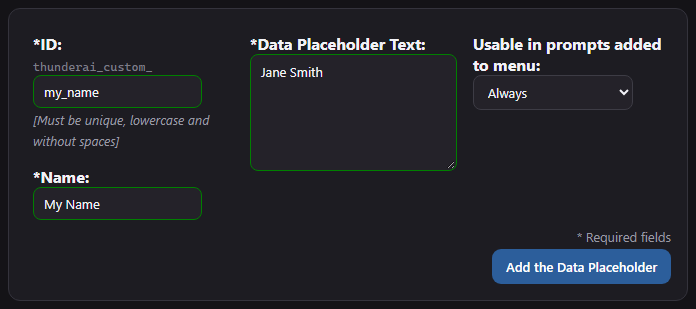
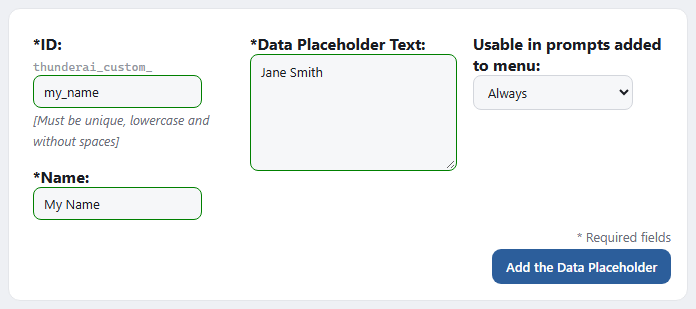
 and fill in the form with these values:
- ID:
my_name— ThunderAI adds thethunderai_custom_prefix, so in your prompts this placeholder is{%thunderai_custom_my_name%}. - Name:
My Name— A descriptive name that is useful to you. - Data Placeholder Text: your full name, e.g.
Jane Smith. - Usable in prompts added to menu: Always — So you can use it in every prompt, both when reading and when composing an email.
Click 
 , then
 : on this page the changes are stored only when you save them.
You can now use {%thunderai_custom_my_name%} in any prompt and ThunderAI will replace it with your name automatically.
Step 2 — Create the custom prompt
Go back to the ThunderAI Options and click the 
 button to open the Manage Prompts page.
Click
button to open the Manage Prompts page.
Click 
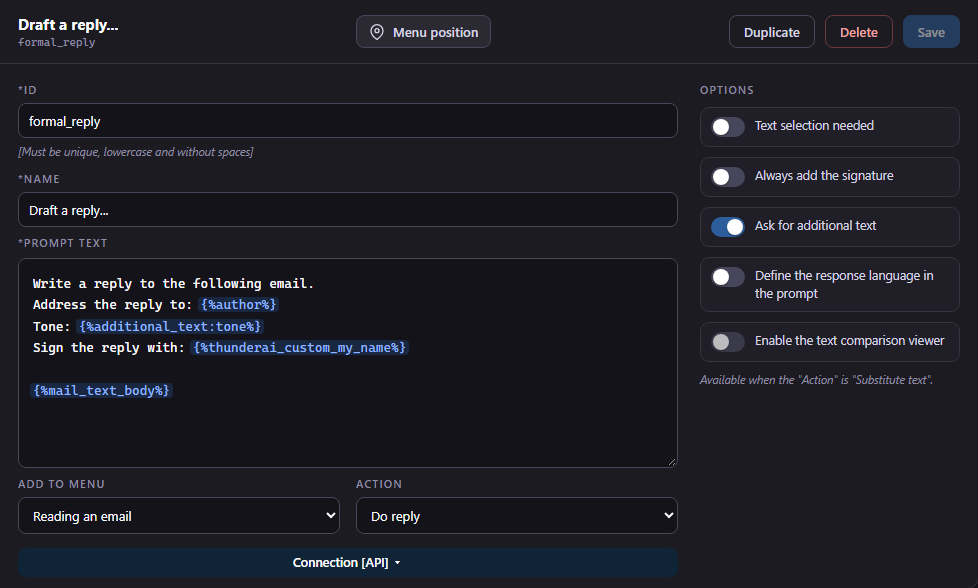
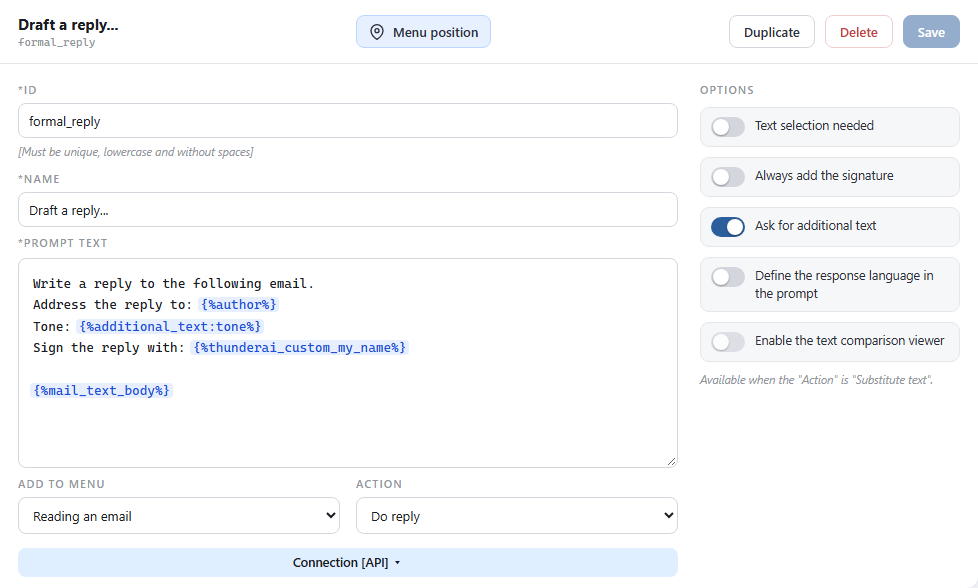
 and fill in the fields as follows:
- ID:
formal_reply - Name:
Draft a reply...— The name will appear in the ThunderAI menu. The...is a useful convention to signal that the prompt will ask for input before running. - Prompt Text: copy the prompt below.
Write a reply to the following email.
Address the reply to: {%author%}
Tone: {%additional_text:tone%}
Sign the reply with: {%thunderai_custom_my_name%}

{%mail_text_body%}
When you type {% in the prompt text, ThunderAI suggests the available placeholders, and every placeholder it recognizes is highlighted. If one is shown in red, check how you wrote it.
A note on the placeholders used:
{%author%}— A standard placeholder that inserts the author of the email (name and email address).{%additional_text:tone%}— A user input placeholder: ThunderAI will ask you to type the tone each time you run this prompt. The IDtoneis shown next to the input field, so you know what to write.{%thunderai_custom_my_name%}— The custom data placeholder you created in Step 1.{%mail_text_body%}— The body of the email in plain text, so the AI has the context it needs.
Step 3 — Configure the prompt settings
Still in the new prompt, set the following options:
- Add to menu: Reading an email — You want to reply to received emails, not use this while composing.
- Action: Do reply — The answer of the AI will be used to reply to the email.
- Ask for additional text: turn it on — It is required for the
{%additional_text:tone%}placeholder to work. If you leave it off, ThunderAI highlights the switch. - Always add the signature: leave it off — We are already adding the name with the prompt itself. Turn it on if you also want the signature defined in the ThunderAI options.
In the Connection [API] section you can also choose a different AI service, model or server that will be used only by this prompt. You don't need it for this tutorial: by default the prompt uses the connection set in the options.
Click 
 . The prompt is saved immediately and added to the menu.
Step 4 — Try it out
- Open any received email in Thunderbird.
- Open the ThunderAI menu and select Draft a reply...
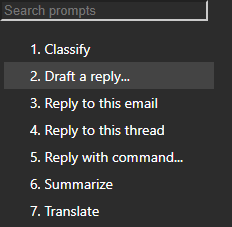
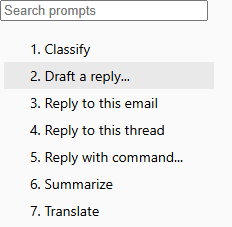
The new prompt in the ThunderAI menu - The AI chat window opens and asks for the additional text, showing the [ID: tone] label. Type something like
formal and conciseand click
 .
.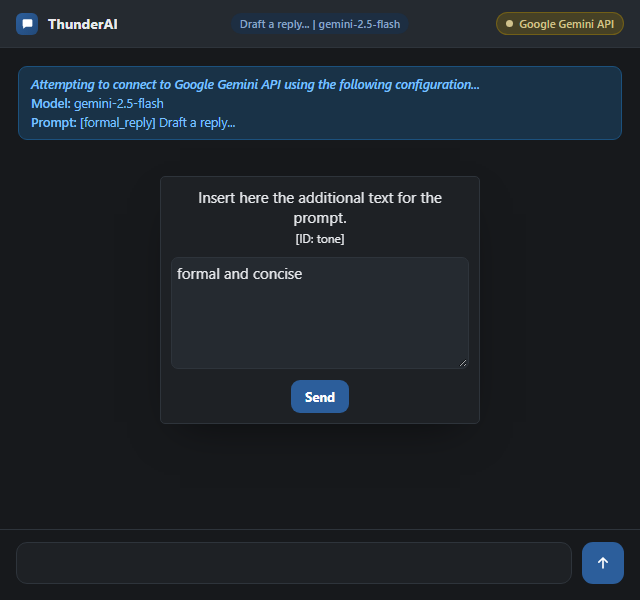
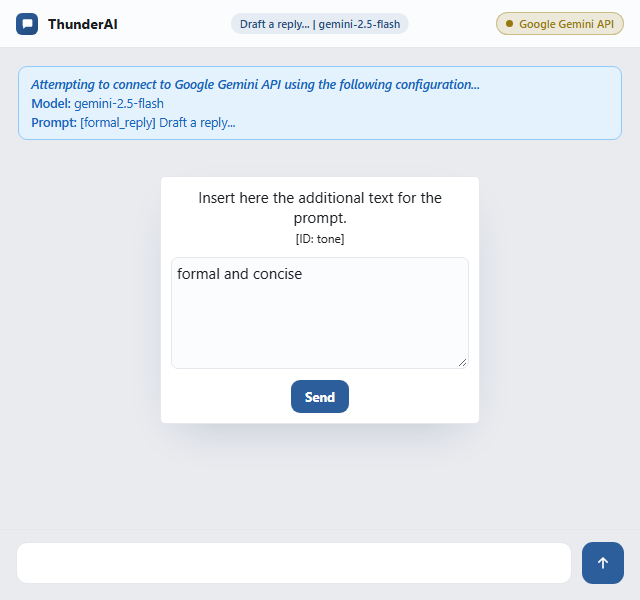
ThunderAI asks for the tone - The prompt is sent to the AI with all placeholders resolved: you can read it in the chat window.
- When the AI answers, click

 to open a reply with the text of the answer. The second line of the button tells you whether it replies to all or only to the sender, as set in the options. The arrow next to it gives you the other choice.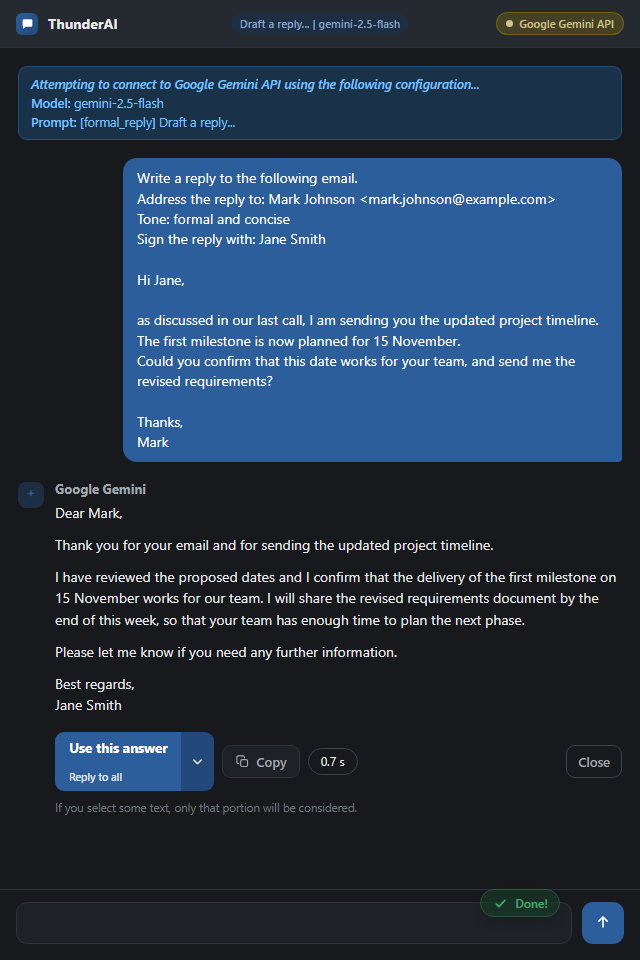
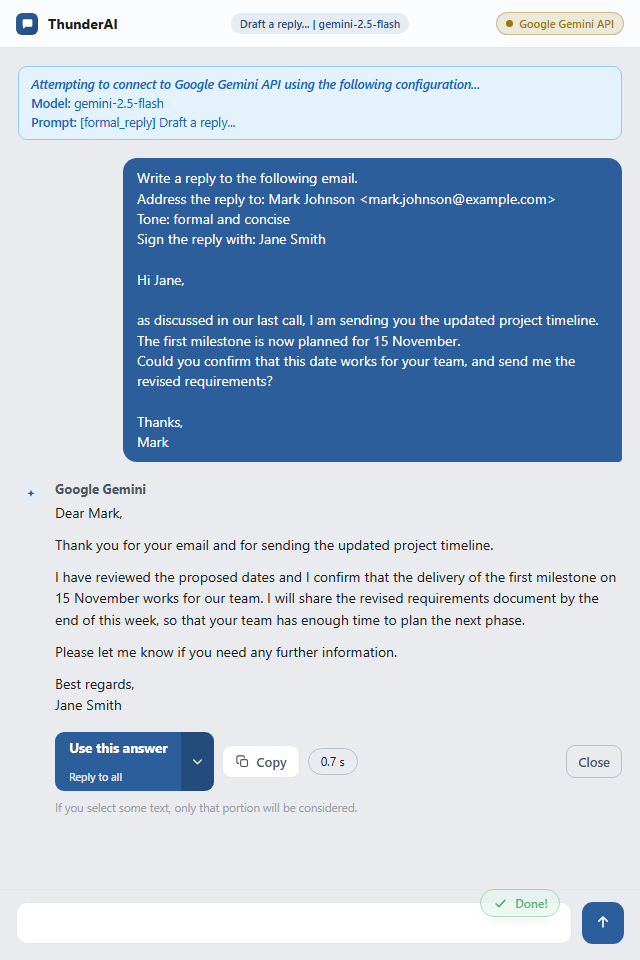
The answer, ready to be used in the reply
What to try next
Now that you know how the pieces fit together, here are a few directions to explore:
- Add more custom placeholders — Store your job title, company name, or a standard disclaimer, and reuse them across all your prompts.
- Add more user input fields — You can have multiple
{%additional_text:<id>%}placeholders in the same prompt, each with a different ID. ThunderAI asks for them one after the other. - Enable the text comparison viewer — If you build a proofreading or rewriting prompt with the Substitute text action, turn on Enable the text comparison viewer to review the changes proposed by the AI before using them.